|
Designed for users of all computer literacy levels, the reFlector
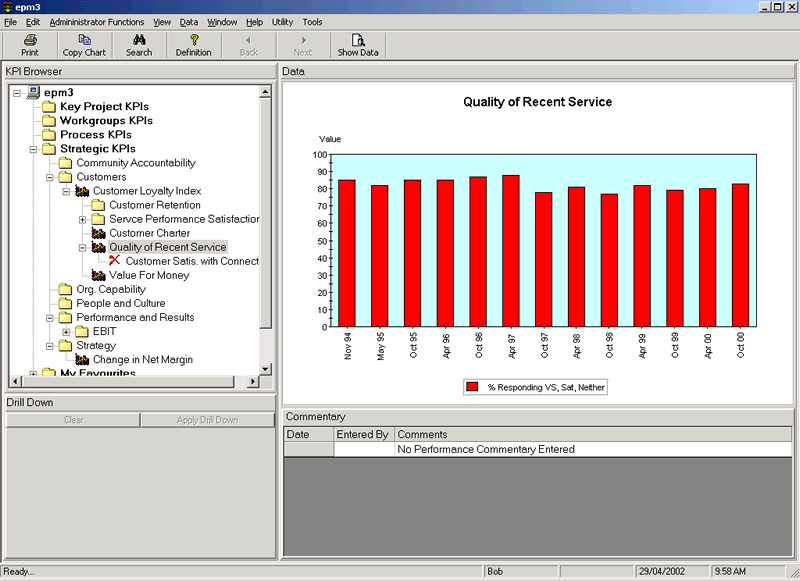
General User interface has been refined over the years to be very straightforward and intuitive for most users. Navigation around the application is as simple as clicking a mouse button in the KPI Browser Window (resembling Windows Explorer). Clicking on an item will display any related KPIs in the KPI Browser Window and its data in either a chart or grid view in the right top corner of the screen - refer figure 1 (click on the picture to expand it to full screen)
KPIs are organised under folders set up by the System Administrator. The top level folders may represent key "Views" for an organisation, and will enable quick access to the right KPI depending
on the View selected. In the example shown, four Views have been selected - Core Projects, Organisational Work groups, Business Process and Strategic. Users with the appropriate privileges will
see all four Views - and can therefore see all KPIs loaded into the reFlector
database. Users with limited privileges will see only data that they are authorised to see - eg they may only see KPIs linked to their workgroup.
All users also have access to their own My
Favourites and My Reports Folders. Favourites can be added simply by another mouse click, enabling users to go quickly to KPIs of particular interest. User can also design their own Reports, once
again by selecting a KPI and adding it to a report. Many options are available to permit the user to customise the appearance of Reports. |